WhisPaste turns Whisper into a desktop app: speak, get text instantly.
WhisPaste is a free, open-source desktop app that turns your voice into text anywhere on your computer. Press a hotkey, speak, and the words appear right where your cursor is — no typing, no cloud, no account needed.
Get WhisPaste, free and open source100% offline
Audio and text never leave your machine — no cloud, no account.
No Python setup
One installer, whisper.cpp bundled in — pick a model, done.
Any hardware
CPU-only works out of the box; GPU (Vulkan/Metal) makes it faster.
How to use Whisper as a desktop tool with WhisPaste
One hotkey, your voice, text at the cursor — no app switch in between.
Install WhisPaste and pick a Whisper model
Download WhisPaste from the Microsoft Store or GitHub. On first launch the setup assistant suggests a model size based on your hardware: compact for an 8 GB laptop, balanced for 16 GB with a GPU, premium for higher VRAM.
Let the model download once
WhisPaste fetches the chosen whisper.cpp model file in the background and verifies it. The download resumes after interrupted connections, so a flaky network does not force you to start over. After that, transcription runs fully offline.
Press your hotkey and speak
Place the cursor wherever you want the text, hold your configured hotkey, and speak. whisper.cpp transcribes the audio on your machine and the transcript appears at the cursor: no upload, no browser tab, no copy-paste step.
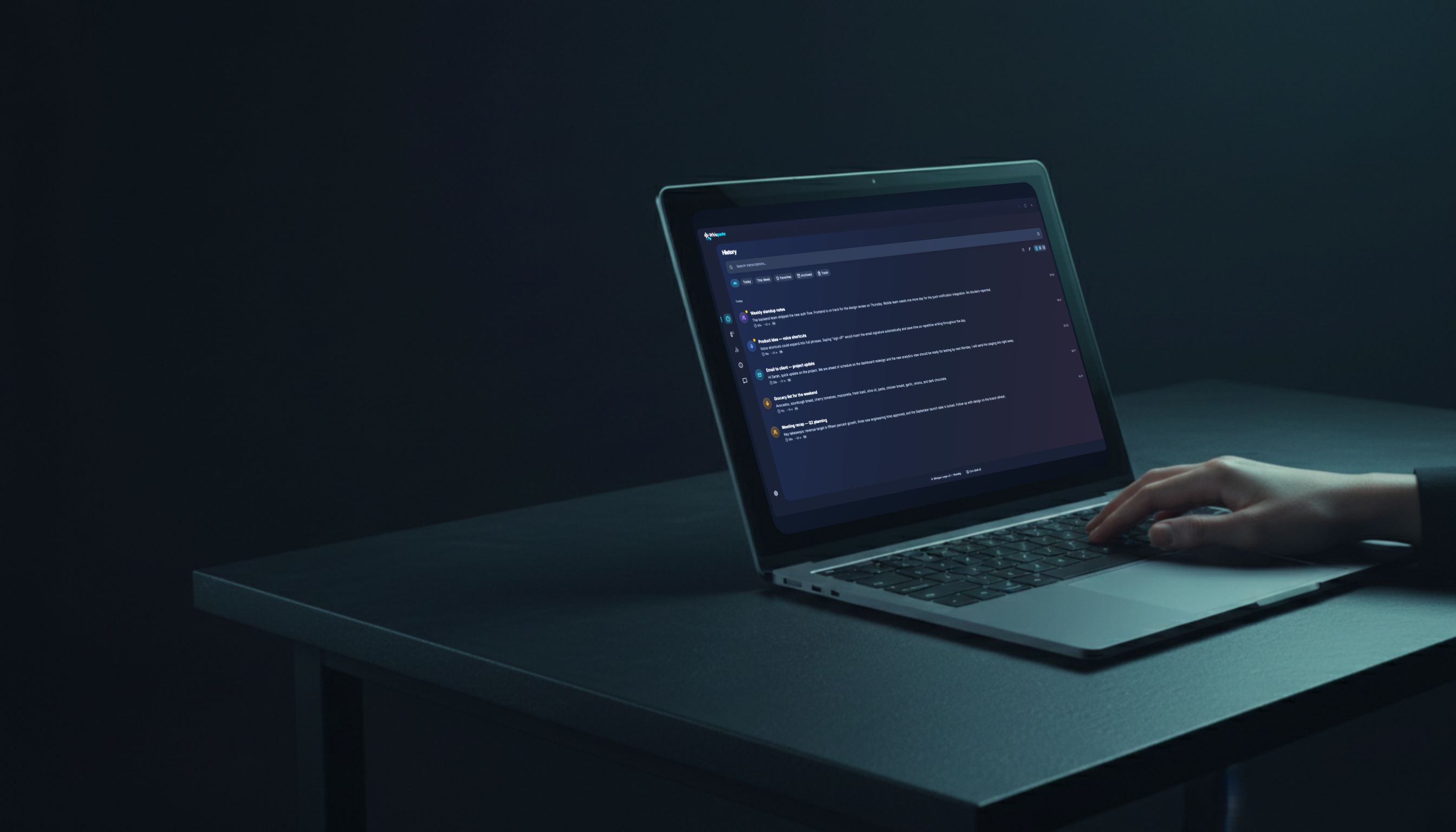
WhisPaste in everyday use: dictated notes turn into text instantly, right on your own device.
Technical details
Setup: one installer, no Python environment
WhisPaste embeds whisper.cpp (the C++ port of OpenAI Whisper) directly inside the desktop binary. After install, you pick a model size from a drop-down, the app downloads it once, and from then on transcription runs fully offline on your machine. No virtualenv, no pip, no CUDA toolkit — the GPU acceleration ships inside the download (Vulkan on Windows and Linux, Metal on Apple Silicon).
Performance: CPU works, GPU is five times faster
whisper.cpp runs on plain CPU on every supported machine (Windows 10+, macOS 11 Big Sur+ on Apple Silicon, Ubuntu Linux), so an 8 GB laptop without a discrete GPU is enough for the compact model. On a machine with a dedicated GPU (Vulkan on Windows and Linux, Metal on Apple Silicon), the same transcript is produced roughly five times faster. Apple Silicon uses unified memory, so 8 GB already covers the balanced model. No GPU at all? WhisPaste's second on-device engine, Parakeet, is built CPU-first and stays several times faster than Whisper on the same hardware, at the cost of language breadth (about 25 languages instead of 99).
Same transcript, measured with whisper.cpp on identical hardware.
Local vs cloud: same Whisper, different trade-offs
Local Whisper keeps audio on your machine, costs nothing per minute, and works without internet, at the price of a one-time model download and slightly more RAM. Cloud providers like OpenAI or Deepgram trade those resources for raw speed and the largest models. WhisPaste lets you pick per session: stay local by default, switch to a cloud provider when you need maximum speed on a long recording.
FAQ