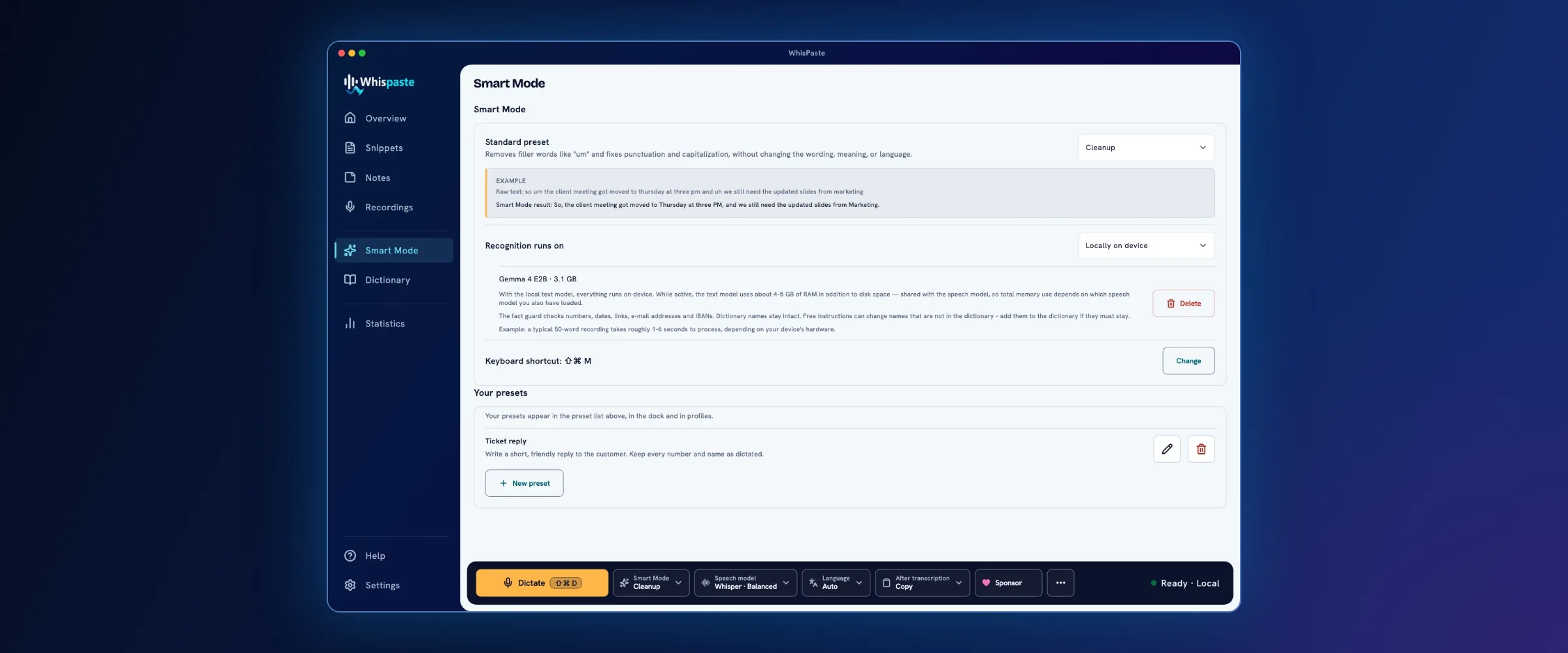
WhisPaste 1.5 is out, and it looks different. The interface has been rebuilt: calmer, and consistent from page to page. Much of what you use often is now one click away, from the tray, from the dock or through the search in the settings. The core hasn’t changed: press the hotkey, speak, and the text is in the field.
This is the biggest update so far. Since version 1.4.2 a month ago, 1,917 individual changes went into the app; from 1.3 to 1.4 it was 105. The changelog lists 168 new features, 95 improvements and 171 fixes. We’re quite proud of this one. For us it’s the next big step, because for the first time WhisPaste feels like one piece.
The changes you’ll see right away come first, then what happened under the hood, and at the end three things to know before you update.
A new, tidier interface
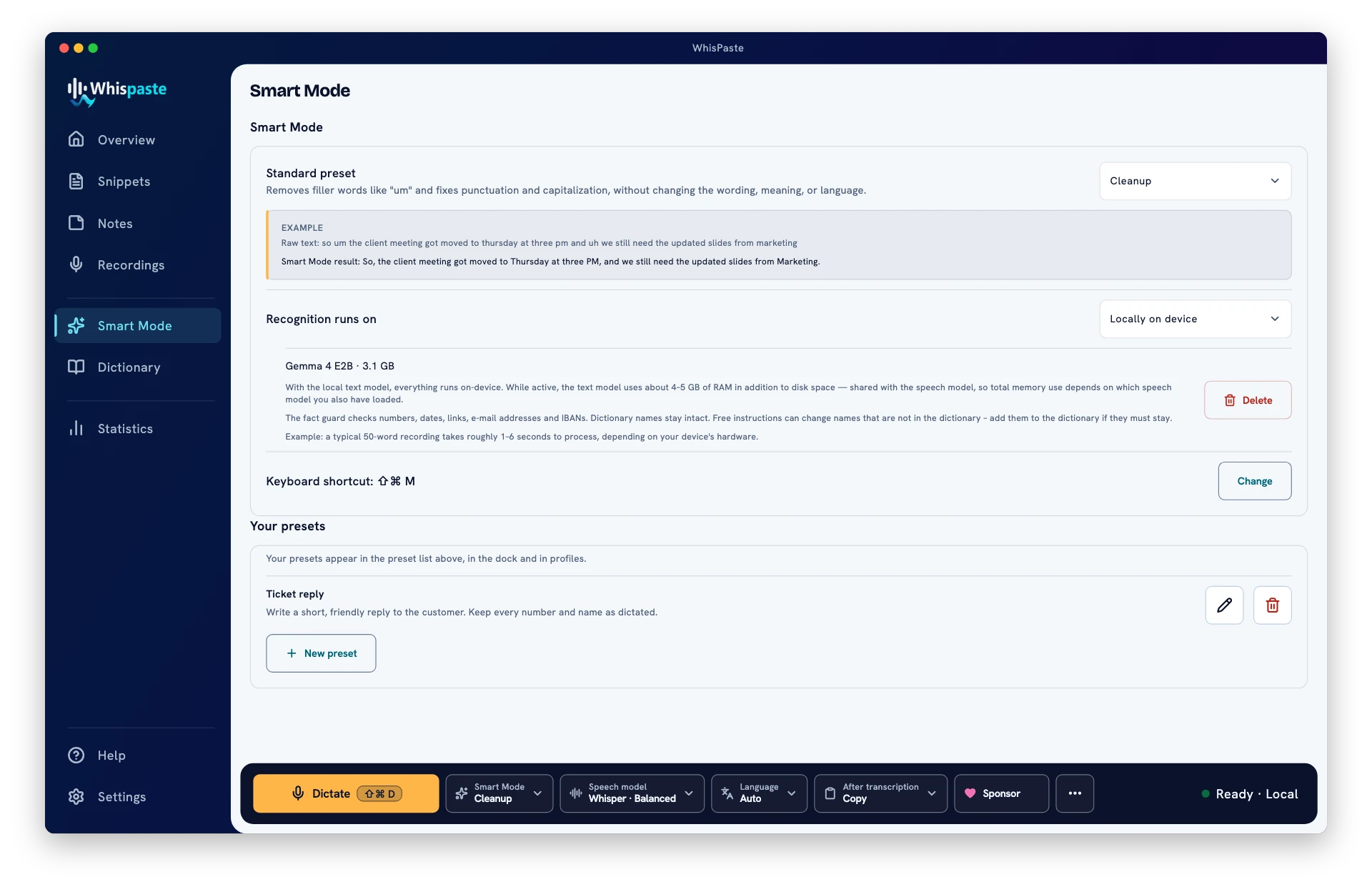
A sidebar on the left now leads to Overview, Snippets, Notes, Recordings, Smart Mode, Dictionary, Statistics and Help. The dock sits at the bottom of the window: the “Dictate” button, and next to it the choices for Smart Mode, speech model, language and what happens after transcription. Whatever you change while dictating is in the same place on every page.
We also unified the building blocks. Buttons, cards, progress bars and links look and behave the same everywhere, and recordings, notes and snippets share one editor: the same toolbar, the same shortcuts, autosave. Once you know one page, you know the others.
WhisPaste now opens on the “Overview”. It shows your dictation keys, your numbers for the week and your newest recordings. Under “Customise overview” you can add more cards, such as the weather for a place you choose or news from up to five RSS feeds.
The tray panel: the essentials without the main window
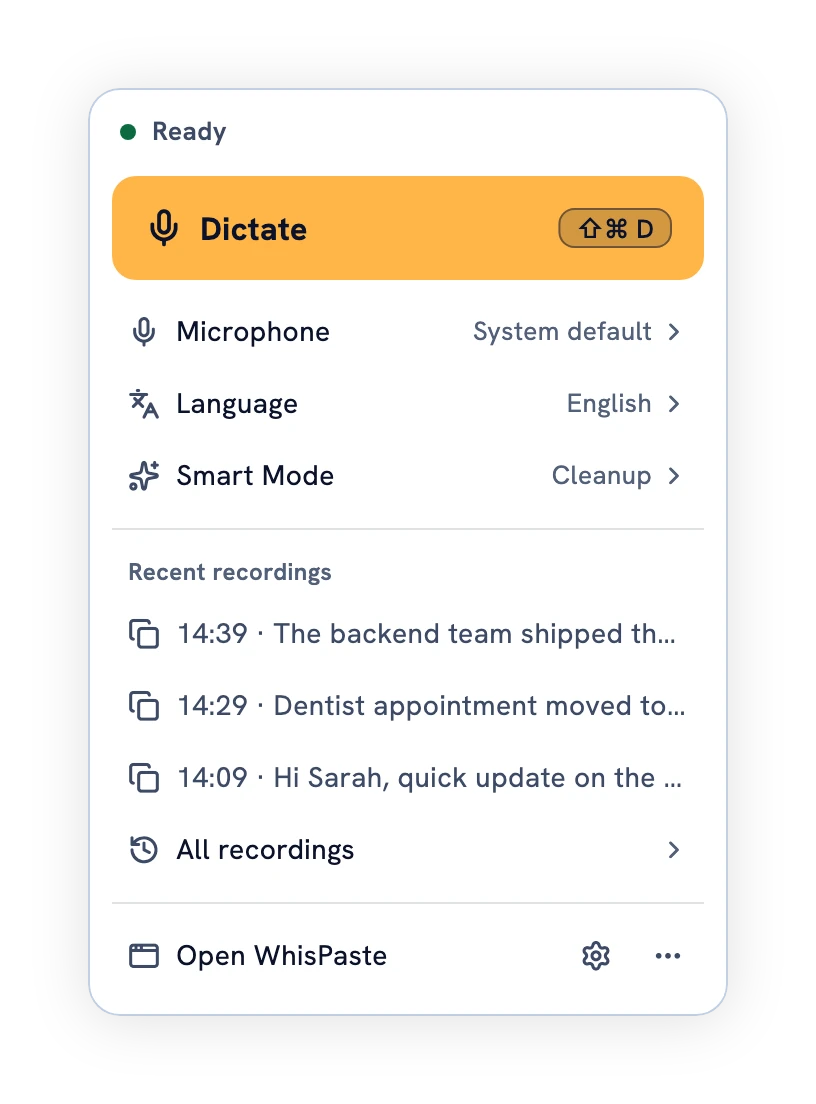
Clicking the WhisPaste icon in the menu bar or the Windows notification area now opens a small panel instead of a long list. It shows the status, a button to start and stop, your last three recordings, and quick switches for microphone, favorite languages, profile and Smart Mode. Rarely used commands sit behind “…”. The panel works entirely by keyboard and doesn’t take the focus away from the app you’re writing in.
The icon itself tells you more, too: while you dictate it carries a red dot, and while the text is being made, an amber ring. On Linux, where tray icons report no left click, open the panel with “Open panel” in the tray menu.
Settings you can find your way around
The settings are now split into areas with a column to navigate: General, Appearance, Keyboard shortcuts, Recording & audio, Speech recognition, Text & insertion, Profiles, Privacy & data, API keys and Advanced. The search at the top jumps straight to the right area. You enter API keys for OpenAI and Deepgram in one place, and that’s also where you see which features use them.
A recording overlay to your taste
The small overlay that appears while you dictate is now much more yours to shape:
- A fourth size joins the other three: “Nano”, 88 × 24 pixels, with just a short wave and a symbol for the state.
- For the background, choose Amber, Glacier, Graphite, Marine or the new “Glass”. On macOS 26 and Windows 11, the system’s own glass shows through.
- You set the wave colour separately.
- There are two new wave styles, “Ribbons” and “Pulse”, and all styles are drawn more finely. Every wave adapts to your voice and microphone, so normal speech uses the full height.
WhisPaste sounds new, too. The “Amber” sound profile is now the default and brings new tones for the course of a dictation, from the start of the recording to the finished text. If you prefer the old tones, choose the “Classic” profile under Settings → Recording & audio → Sound & feedback. You can preview each tone there, and the change applies at once.
On the Mac: Apple’s speech recognition
On macOS 26 and later, you can choose Apple’s speech recognition as a third speech model next to Whisper and Parakeet, right in the setup or later under Settings → Speech recognition. It’s part of the system, so there’s no large model to download, and like the other two it runs on your device. With a fixed dictation language, you see your words in the overlay while you speak.
Transcribe files
Drop an audio file onto the window or the Recordings page, and WhisPaste transcribes it on your device. That works with WAV, MP3, FLAC, M4A/AAC and Ogg/Opus, and with videos as MP4, MOV, MKV or WebM. From a video, only the audio track is extracted, locally; nothing is uploaded. On Windows with the installer from the website, you can also right-click an audio file and choose “Transcribe with WhisPaste”; on a Mac, on Linux and in the Store version, you’ll find WhisPaste under “Open With”.
New statistics
The Statistics page now opens with what matters: how many words you dictated, how fast you speak, measured on speaking time only, and how much time you saved. Below that, the last 16 weeks are shown day by day, with your streak in days. One missed day doesn’t break it. The numbers stay even when you delete recordings. For the statistics WhisPaste only counts; it never uses text or audio.
Help and a handbook, right in the app
“Help” in the sidebar is new as well. It holds a searchable handbook with 16 chapters, an introduction, diagnostics for when something doesn’t work, and under “Feedback & contact” every way to reach us: the feedback form, bug reports, ideas and our address. A draft in the form is kept, even if you leave the page or are offline.
And if you want to know what’s coming next, you can now sign up for our newsletter on the Overview. The app sends your address to our server only when you click “Sign up” and doesn’t store it. You’re signed up once you click the link in the confirmation email.
Under the hood: faster and sturdier
Much of 1.5 isn’t something you see, only something you notice:
- WhisPaste no longer keeps every recording in memory. The tray, the side panel and the Overview read only what they show, so even long histories stay light.
- When WhisPaste detects the language itself, it no longer analyses the audio twice. On a Mac, that makes a 15-second dictation about 0.3 seconds faster.
- Even a note with 100,000 words scrolls and edits smoothly.
- A damaged speech model repairs itself: WhisPaste checks the file and downloads it again only if it really differs.
- The text of a recording saves itself while you edit, so a crash or a mis-click no longer loses anything.
- Long cloud transcriptions run in parts. After a crash, only the part in progress is redone.
And your data is now stored encrypted on your device: history, notes, dictionary, snippets, settings and kept recordings. The app creates the key itself and keeps it in your system’s key store; it never leaves the device. There is one thing you should do once: under Settings → Privacy & data, use “Back up” to create a recovery code or a backup file. If you move to a new computer, “Restore” brings your data back there.
And quite a bit more
- Smart Mode has its own page and your own presets, with an instruction of up to 500 characters, such as “Write it as a polite email”.
- WhisPaste raises quiet recordings to an even level before transcribing them. The setting is called “Even out volume automatically” and is on by default.
- Mark up to five favorite languages with a star; the tray and the floating button list them first.
- On macOS and Windows, WhisPaste no longer pastes into password and PIN fields.
- Hold Alt (Option on a Mac) as you release the dictation key, and a chat message goes out right after pasting. This is opt-in.
Everything else is in the changelog.
Thank you
Quite a bit of 1.5 goes back to your suggestions. Your own Smart Mode presets, F13 to F24 as dictation keys and importing voice notes came in as ideas on our ideas board. On GitHub, vogeligor-oss and RichardC05 narrowed down the Linux tray bugs so precisely that “Quit” and the menu entries now work reliably there. H-Masoumi set off the expansion of favorite languages, and ThisIsTheOldGuard the video import. Thank you all.
Missing something? Send us your idea under “Help” → “Feedback & contact”, and vote on other people’s suggestions on the ideas board.
Three things before you update
There’s no way back to 1.4. Because your data is encrypted from 1.5 on, version 1.4.x can’t read it, and it doesn’t warn you either. So don’t reinstall 1.4.x after the update. If 1.5 causes trouble, install the newest 1.5.x update and tell us what happened under “Feedback & contact”.
Linux now needs Ubuntu 26.04 or newer. The Linux packages of 1.5 (AppImage, .deb and tar.gz) are built for Ubuntu 26.04 (glibc 2.43). They don’t start on Ubuntu 24.04 or other systems with an older glibc. There, keep using version 1.4.2 until you upgrade the system.
Mac: Apple silicon with macOS 13 or newer only. WhisPaste 1.5 runs on Macs with an Apple chip (M1 or newer) from macOS 13 Ventura on. We no longer support Intel Macs or macOS 12. There, keep using version 1.4.2; the Mac App Store won’t offer you 1.5 either.
Update to 1.5
Get WhisPaste 1.5 from the Download page. If you use the version from the Microsoft Store or the Mac App Store, the update arrives there once the store has approved it. After the update, WhisPaste opens on the new Overview. Back up your data key under Settings → Privacy & data first, then take a moment to try the new overlay.